Thanks for those kind words, Mr. Spock, and here's your portrait, as I drew using Flash CS3. It was my first attempt at drawing with Flash, and it took me a little over an hour (click to enlarge):
Now that I'm unemployed, I decided to learn some Flash. I downloaded the trial from Adobe, and started reading around. I was more interested in writing programs using ActionScript 3, but while writing those programs, I also wanted to have decent images/animations to be shown.
I could find very little information about how to draw things in Flash. This looks like a very important aspect of Flash, but even the Adobe CS3 Video Workshop neglects this issue (or at least, I couldn't find it). All the tutorials I could find were fine with animating a circle or a rectangle.
Then, a friend showed me a tutorial called Drawing Line Art with Flash. It was so simple and smart, that I had to try it right away. Don't know why, but I decided that Spock would be a good candidate, and you saw the results above. I must say I have a keen eye for what looks pleasant, but I'm definitely an amateur graphics artist (and even less than that). If I can do this with Flash, it's a great tool (at least for this purpose), and almost anyone can do it.
For reference, here's the original image, if you search the web for Spock images, you'll see this image repeated many times:
Wednesday, October 24, 2007
Monday, September 17, 2007
I'm Unemployed
All the excellent bits and bytes I put (with others in the RND team) into the Transparency Software Vision(tm) product were not enough. The startup company I worked for since January 2005 (almost 3 years) is shutting down - I suspect the previous link to the company site would be broken pretty soon.
The investors lost faith in the company management and decided to cut their losses and take whatever's left in the company's bank account.
So I was officially fired yesterday - Sunday, September 16th 2007, and I'm now unemployed. I was actually one of the founders of the company, but being a technical guy, and not a businessman, I was a mini-founder - getting just a few percents of the original company. Oh, in my many years in the the hi-tech industry I've learned and re-learned that the developers in a startup company (no matter how good or bad they are) have little influence on the company's chances to succeed. It's much more in the hands of all the non-technical guys. It's a shame, since I'm a very good developer, and I wish I could attribute more to the success of the places I work in.
Well, wish me luck for next time... ;-)
The investors lost faith in the company management and decided to cut their losses and take whatever's left in the company's bank account.
So I was officially fired yesterday - Sunday, September 16th 2007, and I'm now unemployed. I was actually one of the founders of the company, but being a technical guy, and not a businessman, I was a mini-founder - getting just a few percents of the original company. Oh, in my many years in the the hi-tech industry I've learned and re-learned that the developers in a startup company (no matter how good or bad they are) have little influence on the company's chances to succeed. It's much more in the hands of all the non-technical guys. It's a shame, since I'm a very good developer, and I wish I could attribute more to the success of the places I work in.
Well, wish me luck for next time... ;-)
Monday, September 10, 2007
Azureus Status Command Line Invoker
I've written a plug-in for Azureus that allows running an arbitrary command line once a download completes. You could, for example, send yourself an e-mail once this happens, but there's actually already a plug-in dedicated for this.
I'm using this plug-in to check if AVIs I download use packed bitstream, and if they do, unpack them. This way, there's one less thing to do before I can play the movie on my standalone DVD/DivX player.
For more information, see my plug-in page.
I'm using this plug-in to check if AVIs I download use packed bitstream, and if they do, unpack them. This way, there's one less thing to do before I can play the movie on my standalone DVD/DivX player.
For more information, see my plug-in page.
Monday, April 23, 2007
Why Frame Rate Matters
I saw the following in MythTV's forum (MythTvTalk):
While this is true in some aspects, it's very wrong with regards to one important aspect: frame rate. Why is frame rate important? Because there's no way to do interpolations on time.
Let's think about it this way - if your monitor is set to 1024 x 768 and the movie you're watching is using a different resolution, it's relatively easy to scale the movie to fit the entire screen - scaling using various methods of interpolation has been done a lot. In most cases, it's the video card that does the scaling, so it doesn't even affect your computer playback performance (scaling doesn't work well on interlaced video, which is one of the reasons I think interlaced video sucks, but that's the topic for another post).
If your monitor is set to 60Hz (it's practically showing 60 fps), and you're watching a PAL movie that runs at 25 frames per second, there's no way to interpolate 60 frames out of the existing 25 frames. Instead, during playback frames are repeated so that the overall speed of the movie is maintained.
Here's an easy example, and let's assume that NTSC runs at exactly 30 fps for simplicity: If your monitor is set to 60Hz, and you play a 30 fps NTSC movie, each frame is shown for two progressive scans of the screen - the frame rate is maintained exactly, and the quality and smoothness of the video is excellent.
But now try to watch a 25 fps PAL movie using the same monitor. Now you have to fit 25 original frames into 60 display frames. That's 5 original frames into 12 display frames (in 1/5 of a second). There's no way to spread the frames evenly. Let's assume an original frame switch is done as soon as it should be shown, but not within a display frame (otherwise you'll see a discontinuity at a certain vertical position, whenever there's horizontal motion between frames). That's the way DirectShow works on Windows. In this case, here's how 1/5 of a second would look like:

After this conversion, some of the frames would be shown for 1/30 of a seconds, and some would be shown for 1/20 of a second, there's actual a rhythm here: 3,2,3,2,2. This rhythm will repeat itself 5 times per second throughout the video you're seeing. The visual result of this is called judder, and is especially common when converting films to NTSC.
How annoying is this jitter? Many people wouldn't be able to spot the problem, but the video would looks a bit jumpy. It's especially visible in scenes of consistent (and slow) horizontal movement of the camera (panning).
Connecting your PC to a TV
What if you have a TV-Out option on your display card, and you hook your PC to a TV? Will this solve the problem? The TV shows 25 fps, and the movie also has 25 fps, but there's no way to skip the 60 fps of the display adapter (actually, some display adapters lock the frame rate to something sensible when the TV-Out is turned on, but let's assume you can feed a PAL TV from a display card showing 60 fps).
In this case the result is even worse. The display adapter has to convert the 60 fps back to 25 fps without knowing the original material was in 25 fps. This would probably look like this:

What happened here? The first original frame (red) is shown without a problem, but by the time we need to show the second frame (on the TV), the second video frame (yellow) is not yet shown, so the red frame will be shown once more. The outcome is that out of every 5 frames, one will be repeated, and one will be skipped. This is a pretty noticeable judder.
What's the Solution?
In some cases it's quite simple - if you're using your PC to watch video, make sure the display refresh rate matches your video's frame rate. If you watch PAL movies, set your display to 75Hz or 100Hz. If you watch NTSC movies, it sounds like you should set your display to 60Hz (or 90Hz or 120Hz), but most NTSC shows are actually filmed at 24 fps (film rate), so the best frame rate is a multiplication of that, probably 72Hz.
Is that all?
No, of course not. Many people in Europe want to use their computers to watch both shows they recorded using a capture card (which will be recorded at 25 fps) and movies or US TV shows (which are recorded at 24 fps). How do you set your monitor's refresh rate in this case? I'll leave that to the next post.
"Once the video is captured in the file (...), you are past any PAL/NTSC differences..."
While this is true in some aspects, it's very wrong with regards to one important aspect: frame rate. Why is frame rate important? Because there's no way to do interpolations on time.
Let's think about it this way - if your monitor is set to 1024 x 768 and the movie you're watching is using a different resolution, it's relatively easy to scale the movie to fit the entire screen - scaling using various methods of interpolation has been done a lot. In most cases, it's the video card that does the scaling, so it doesn't even affect your computer playback performance (scaling doesn't work well on interlaced video, which is one of the reasons I think interlaced video sucks, but that's the topic for another post).
If your monitor is set to 60Hz (it's practically showing 60 fps), and you're watching a PAL movie that runs at 25 frames per second, there's no way to interpolate 60 frames out of the existing 25 frames. Instead, during playback frames are repeated so that the overall speed of the movie is maintained.
Here's an easy example, and let's assume that NTSC runs at exactly 30 fps for simplicity: If your monitor is set to 60Hz, and you play a 30 fps NTSC movie, each frame is shown for two progressive scans of the screen - the frame rate is maintained exactly, and the quality and smoothness of the video is excellent.
But now try to watch a 25 fps PAL movie using the same monitor. Now you have to fit 25 original frames into 60 display frames. That's 5 original frames into 12 display frames (in 1/5 of a second). There's no way to spread the frames evenly. Let's assume an original frame switch is done as soon as it should be shown, but not within a display frame (otherwise you'll see a discontinuity at a certain vertical position, whenever there's horizontal motion between frames). That's the way DirectShow works on Windows. In this case, here's how 1/5 of a second would look like:

After this conversion, some of the frames would be shown for 1/30 of a seconds, and some would be shown for 1/20 of a second, there's actual a rhythm here: 3,2,3,2,2. This rhythm will repeat itself 5 times per second throughout the video you're seeing. The visual result of this is called judder, and is especially common when converting films to NTSC.
How annoying is this jitter? Many people wouldn't be able to spot the problem, but the video would looks a bit jumpy. It's especially visible in scenes of consistent (and slow) horizontal movement of the camera (panning).
Connecting your PC to a TV
What if you have a TV-Out option on your display card, and you hook your PC to a TV? Will this solve the problem? The TV shows 25 fps, and the movie also has 25 fps, but there's no way to skip the 60 fps of the display adapter (actually, some display adapters lock the frame rate to something sensible when the TV-Out is turned on, but let's assume you can feed a PAL TV from a display card showing 60 fps).
In this case the result is even worse. The display adapter has to convert the 60 fps back to 25 fps without knowing the original material was in 25 fps. This would probably look like this:

What happened here? The first original frame (red) is shown without a problem, but by the time we need to show the second frame (on the TV), the second video frame (yellow) is not yet shown, so the red frame will be shown once more. The outcome is that out of every 5 frames, one will be repeated, and one will be skipped. This is a pretty noticeable judder.
What's the Solution?
In some cases it's quite simple - if you're using your PC to watch video, make sure the display refresh rate matches your video's frame rate. If you watch PAL movies, set your display to 75Hz or 100Hz. If you watch NTSC movies, it sounds like you should set your display to 60Hz (or 90Hz or 120Hz), but most NTSC shows are actually filmed at 24 fps (film rate), so the best frame rate is a multiplication of that, probably 72Hz.
Is that all?
No, of course not. Many people in Europe want to use their computers to watch both shows they recorded using a capture card (which will be recorded at 25 fps) and movies or US TV shows (which are recorded at 24 fps). How do you set your monitor's refresh rate in this case? I'll leave that to the next post.
Monday, April 16, 2007
DWR problem: InboundVariable error when combined with prototype.js
General
I'm using DWR at work and it's an excellent tool for AJAX (easily doing RPC from the client browser in JavaScript back to the Java Server). It also has good enough integration with Spring, which is a plus.
But for quite some time, we've had errors popping up in our logs every time we sent a JavaScript object to over DWR. The errors would look something like this:
In our case, we didn't acutally use prototype at that point, so we removed the
<script src="prototype-x.y.x.js"> from our JSP pages and the error was gone. If you need to fix this problem, but want to keep using prototype.js, you'll probably have to remove the 'extend' property from objects you send using DWR (or set the property to null).
BTW, if you ask me - it's a bug in DWR, since functions should not be marshaled. I'm using DWR 1.1.3, so this might have been fixed in 1.1.4, but I didn't see too much information about this using the almighty search engine.
How the problem was found
I used the LiveHttpHeaders extension for FireFox, and captured a DWR call. It seems very straightforward:
I've also sent two parameters. The first (co-param0) is a boolean. The second (c0-param1) is complex, so it references other entries in the request, called c0-e{num}.
It's easy to see that 'extend' references 'c0-e6', that doesn't exist in the request.
I didn't know why 'extend' was there - I didn't send it, so I tried a short HTML with a DWR request, and indeed, it didn't send an 'extend' as part of the object I sent. Now, it was obvious this is done by one of the many JS files included in our real application page, and a quick search revealed the offender.
I'm using DWR at work and it's an excellent tool for AJAX (easily doing RPC from the client browser in JavaScript back to the Java Server). It also has good enough integration with Spring, which is a plus.
But for quite some time, we've had errors popping up in our logs every time we sent a JavaScript object to over DWR. The errors would look something like this:
2007-03-07 03:56:14,783 [ERROR] InboundVariable - Found reference to variable named 'c0-e6', but no variable of that name could be found.
To keep a long story short, if you happen to use the prototype.js library, it adds a function called 'extend' to the prototype of Object, so all objects have it. For some reason, DWR tries to marshal that 'extend' function as a property, but fails (it's a function), the the POST request that DWR sends, the 'extend' property is specified, but doesn't have a corresponding value.In our case, we didn't acutally use prototype at that point, so we removed the
<script src="prototype-x.y.x.js"> from our JSP pages and the error was gone. If you need to fix this problem, but want to keep using prototype.js, you'll probably have to remove the 'extend' property from objects you send using DWR (or set the property to null).
BTW, if you ask me - it's a bug in DWR, since functions should not be marshaled. I'm using DWR 1.1.3, so this might have been fixed in 1.1.4, but I didn't see too much information about this using the almighty search engine.
How the problem was found
I used the LiveHttpHeaders extension for FireFox, and captured a DWR call. It seems very straightforward:
POST /Console/dwr/exec/XXXSearch.handleAddOrUpdate.dwr HTTP/1.1The request reminded me that DWR calls can be batched (hence the callCount field), and all the c0-{name} arguments describe call number 0, I assume I would have seen c1-{name} if I had more calls in this request.
Host: localhost:8085
User-Agent: Mozilla/5.0 (...) Gecko/20070216 Firefox/1.5.0.10
Accept: text/xml,application/xml,application/xhtml+xml,text/html;q=0.9...
Accept-Language: en-us,en;q=0.5
Accept-Encoding: gzip,deflate
Accept-Charset: ISO-8859-1,utf-8;q=0.7,*;q=0.7
Keep-Alive: 300
Connection: keep-alive
Content-Type: text/plain
Content-Length: 393
Cookie: JSESSIONID={don't tell}; Country=US; Language=en
Pragma: no-cache
Cache-Control: no-cache
callCount=1
c0-scriptName=XXXSearch
c0-methodName=handleAddOrUpdate
c0-id=8297_1173264435303
c0-param0=boolean:false
c0-e1=number:1
c0-e2=string:session.5
c0-e3=boolean:false
c0-e4=string:1
c0-e5=string:orcl
c0-param1=Object:{currRow:reference:c0-e1, factory:reference:c0-e2,
orCondition:reference:c0-e3, cond:reference:c0-e4,
values_0:reference:c0-e5, extend:reference:c0-e6}
xml=true
I've also sent two parameters. The first (co-param0) is a boolean. The second (c0-param1) is complex, so it references other entries in the request, called c0-e{num}.
It's easy to see that 'extend' references 'c0-e6', that doesn't exist in the request.
I didn't know why 'extend' was there - I didn't send it, so I tried a short HTML with a DWR request, and indeed, it didn't send an 'extend' as part of the object I sent. Now, it was obvious this is done by one of the many JS files included in our real application page, and a quick search revealed the offender.
Wednesday, February 14, 2007
Why I want an HD based DVD/Xvid player
Why I need an HD based DVD player
The reason is quite simple. I have two kids. The older is 3.5 years old and the younger is 2.5 years old. The both watch a fair amount of kids' DVD and like other kids their age, they love seeing the same movies over and over again. Like other kids their age, they've become experts at operating the DVD player and scratching the DVD discs quite hard.
There's no use, DVDs are much better than the old VHS videocasettes (I can't even watch VHS content anymore), but for sure, they're less kids-proof. What's can I say? They're less durable. When you rent a DVD that's not new it's more likely it will pause and skip and stutter than an old VHS tape. The tape deteriorates over time, and the initial quality is lower, but a DVD can become unusable much faster.
Why I need an HD based DVD player? So I can rip those kids DVDs and have them on a hard drive for repeated playback. I would then store the kids' DVDs up with my grown-up DVD collection. If you carefully protect your DVDs like I do, I hope we'll be able to watch them for many more years.
Why I need an HD based Xvid player
I'm downloading videos over the internet, usually using Azureus. I'd like to watch those videos on my 32" TV in the living room, not in the spare room where my computer is. These days, whenever I download something, I burn it on a CD-RW and take it to my DVD/Divx player that's connected to my TV. This wastes a lot of time. I still don't understand why it takes over 10 seconds for a DVD player to recognize a media once it's inserted, but that nothing compared to the few minutes it takes to erase the CD-RW and then rewrite it with the video I downloaded. In addition, CD-RW discs are generally not very reliable. Every once in a while the burn fails, or succeeds, but the player doesn't read the disc or freezes in the middle etc. I need something more reliable like an HD, where I'm sure the information is stored properly.
What I want from an HD based DVD/Xvid Player
I want to be able to play videos without being afraid that my media will be scratched (by my kids, not the player) or that I'll need to burn CD-RWs all the time. Wait, that's not enough. I'm picky and I have more demands:
The reason is quite simple. I have two kids. The older is 3.5 years old and the younger is 2.5 years old. The both watch a fair amount of kids' DVD and like other kids their age, they love seeing the same movies over and over again. Like other kids their age, they've become experts at operating the DVD player and scratching the DVD discs quite hard.
There's no use, DVDs are much better than the old VHS videocasettes (I can't even watch VHS content anymore), but for sure, they're less kids-proof. What's can I say? They're less durable. When you rent a DVD that's not new it's more likely it will pause and skip and stutter than an old VHS tape. The tape deteriorates over time, and the initial quality is lower, but a DVD can become unusable much faster.
Why I need an HD based DVD player? So I can rip those kids DVDs and have them on a hard drive for repeated playback. I would then store the kids' DVDs up with my grown-up DVD collection. If you carefully protect your DVDs like I do, I hope we'll be able to watch them for many more years.
Why I need an HD based Xvid player
I'm downloading videos over the internet, usually using Azureus. I'd like to watch those videos on my 32" TV in the living room, not in the spare room where my computer is. These days, whenever I download something, I burn it on a CD-RW and take it to my DVD/Divx player that's connected to my TV. This wastes a lot of time. I still don't understand why it takes over 10 seconds for a DVD player to recognize a media once it's inserted, but that nothing compared to the few minutes it takes to erase the CD-RW and then rewrite it with the video I downloaded. In addition, CD-RW discs are generally not very reliable. Every once in a while the burn fails, or succeeds, but the player doesn't read the disc or freezes in the middle etc. I need something more reliable like an HD, where I'm sure the information is stored properly.
What I want from an HD based DVD/Xvid Player
I want to be able to play videos without being afraid that my media will be scratched (by my kids, not the player) or that I'll need to burn CD-RWs all the time. Wait, that's not enough. I'm picky and I have more demands:
- I won't settle for image quality that's less than what I get from a DVD player. I have a Compaq/HP nw8000 laptop with TV out (S-Video), but the video out quality is not on par with DVD players. The image is washed out and I can't get overscan to work properly.
- I won't settle for poor video decoding performance which introduces frame skips and other visual distractions.
- I won't settle for something that outputs only NTSC or PAL. I have a multisystem TV, and I want to see PAL movies in PAL and NTSC movies in NTSC. A conversion is doable, but changing frame rates introduces some jitter to the video that really annoys the eye.
- I'd be happy to be able to attach thumbnails to files, so that it's easier for my wife and kids to find the videos they want to play.
Friday, January 19, 2007
What is Packed Bitstream?
Many Xvid encoded movies are encoded using Packed Bitstream. What is it? First of all, for me it's important since I have a stand-alone DVD player that can play Xvid encoded avi files, but only if they don't use packed bitstream. Whenever I obtain a movie, and before I burn it on a CD-RW, I have to check if it uses packed bitstream, and if it does, use a utility to convert it to a non-packed bitstream movie (more on that later).
Let me just say up front what packed bitstream is not - it's not saving any space. Actually, when "unpacking" a packed bitstream video the result is a bit smaller (but just a few KBs smaller).
Frame (or VOP) Types
Before we can talk about packed bitstream, we'll need to talk about frame types. In MPEG4 talk, each encoded image of the movie is called a VOP (Video Object Plane). A VOP is usually equivalent to a frame: here's the explanation from Wikipedia: "In MPEG-4, VOP refers to a "Video Object Plane" which is effectively a Video frame." (We'll later see that packed bitstream is exactly where a VOP is not a frame). Here are the VOP types (I'll intermix frames and VOPs, since at this point we can consider them the same):
This is theoretically, mainly because of the following reason: If you want to jump to a specific frame, you have to decode all the frames from the previous I-VOP to the current frame. The frame itself doesn't contain enough information to be seen. Decoding many frames is a long process. Therefore, it's important to have I-VOPs not too far apart. Two comments on this: First: while DVD is MPEG2 and not MPEG4, it also has I-Frames and P-Frames (and also B-Frames), and each chapter mark always points to an I-Frame. Makes sense, right? Second, in many Xvid encoded movies, there are sometimes long scenes where there are I-VOPs every 300 frames! This is very good for overall compression, but seeking takes quite some time.
What about B-VOPs? B-VOPs are encoded based on the previous I-VOP or P-VOP, and also the next I-VOP or P-VOP. The MPEG group found that in many cases, describing a frame as the sum of changes from previous and next frames is more efficient than just the changes from a previous frame. Why? I don't know but the 'E' in MPEG stands for 'Experts', so they know what they say. To complete the picture, I'll just say that P-VOPs are encoded from the previous I-VOP or P-VOP, but never from a previous B-VOP. This means that you B-VOPs never affect the quality of any other frames but themselves, which means you can compress them as much as you want, and it will affect only the current frame. That's not true for I-VOPs or P-VOPs.
Frame Type Example
Let's say we want to encode a sequence of 10 frames. We might end up with the following sequence of frames (or VOPs):

The first frame (frame 0) uses an I-VOP. Frame 3 is encoded based on frame 0, frame 6 is encoded based on frame 3, etc. Frames 1 and 2 are encoded based on frames 0 and 3. Frames 4 and 5 are encoded based on frames 3 and 6, etc. Makes sense, right?
Playback Issues
This is all fine, but how can the player decode a B-VOP if the P-VOP it's based on is later in the stream? What if we'll have much more than 2 consecutive B-VOPs before the P-VOB they're based on? The answer is simple, we need to rearrange the order of the frames as the appear in the stream (or in the file). Here's how this is done in non-packed bitstream files:

The P-VOP preceeds the B-VOPs that depend on it. Of course, it's marked in a special way so that it will not be shown in the stream order. There's still a problem. If the player starts shows frame 0 as soon as it reads it, it will have nothing to show when it reads the next frame. It has to read two frames before encountering the B-VOP it should show next (frame 2). The solution is to insert a playback delay:
Packed Bitstream
A video stream that uses packed bitstream tackles this issue using a different method:

The change here is that a single frame in the stream includes 2 VOPs. Whenever a future P-VOP or I-VOP is needed, it's included within the frame that needs it. Certain frames need no VOP data, since it was already included in a previous frame. In this case an N-VOP (nop? null?) is used. This is an empty VOP that takes up very little space.
There's no need to delay the playback, but on the other hand, the player has to be capable of decoding two VOPs during the time of a single frame.
Unpacking Packed Bitstream Files
I don't know if packed bitsream is better or not for encoders, players, developers, etc. I only know that my standalone DVD player can't handle packed bitstream, so I have to "unpack" such files. If you need this as well, I know of two options you may use:
Let me just say up front what packed bitstream is not - it's not saving any space. Actually, when "unpacking" a packed bitstream video the result is a bit smaller (but just a few KBs smaller).
Frame (or VOP) Types
Before we can talk about packed bitstream, we'll need to talk about frame types. In MPEG4 talk, each encoded image of the movie is called a VOP (Video Object Plane). A VOP is usually equivalent to a frame: here's the explanation from Wikipedia: "In MPEG-4, VOP refers to a "Video Object Plane" which is effectively a Video frame." (We'll later see that packed bitstream is exactly where a VOP is not a frame). Here are the VOP types (I'll intermix frames and VOPs, since at this point we can consider them the same):
- I-VOP (Intra): A frame encoded like a still image (much like a JPEG image). Why aren't all frames encoded like that? It's not efficient. Here's why:
- P-VOP (Previous): A frame that encodes only the changes from the previous frame (we'll be more accurate shortly). In many (actually most) cases, a video frame is very similar to the its preceeding frame. It makes sense to encode a frame by saying "this frame is exactly like the previous frame, except for the following changes". P-VOPs are much more efficient than I-VOPs.
- B-VOP (Bi-directional) - we'll discuss these in a moment.
This is theoretically, mainly because of the following reason: If you want to jump to a specific frame, you have to decode all the frames from the previous I-VOP to the current frame. The frame itself doesn't contain enough information to be seen. Decoding many frames is a long process. Therefore, it's important to have I-VOPs not too far apart. Two comments on this: First: while DVD is MPEG2 and not MPEG4, it also has I-Frames and P-Frames (and also B-Frames), and each chapter mark always points to an I-Frame. Makes sense, right? Second, in many Xvid encoded movies, there are sometimes long scenes where there are I-VOPs every 300 frames! This is very good for overall compression, but seeking takes quite some time.
What about B-VOPs? B-VOPs are encoded based on the previous I-VOP or P-VOP, and also the next I-VOP or P-VOP. The MPEG group found that in many cases, describing a frame as the sum of changes from previous and next frames is more efficient than just the changes from a previous frame. Why? I don't know but the 'E' in MPEG stands for 'Experts', so they know what they say. To complete the picture, I'll just say that P-VOPs are encoded from the previous I-VOP or P-VOP, but never from a previous B-VOP. This means that you B-VOPs never affect the quality of any other frames but themselves, which means you can compress them as much as you want, and it will affect only the current frame. That's not true for I-VOPs or P-VOPs.
Frame Type Example
Let's say we want to encode a sequence of 10 frames. We might end up with the following sequence of frames (or VOPs):
The first frame (frame 0) uses an I-VOP. Frame 3 is encoded based on frame 0, frame 6 is encoded based on frame 3, etc. Frames 1 and 2 are encoded based on frames 0 and 3. Frames 4 and 5 are encoded based on frames 3 and 6, etc. Makes sense, right?
Playback Issues
This is all fine, but how can the player decode a B-VOP if the P-VOP it's based on is later in the stream? What if we'll have much more than 2 consecutive B-VOPs before the P-VOB they're based on? The answer is simple, we need to rearrange the order of the frames as the appear in the stream (or in the file). Here's how this is done in non-packed bitstream files:
The P-VOP preceeds the B-VOPs that depend on it. Of course, it's marked in a special way so that it will not be shown in the stream order. There's still a problem. If the player starts shows frame 0 as soon as it reads it, it will have nothing to show when it reads the next frame. It has to read two frames before encountering the B-VOP it should show next (frame 2). The solution is to insert a playback delay:
- When the player reads and decodes frame 0 (I), it displays nothing.
- When the player reads and decodes frame 1 (P), it displays frame 0.
- When the player reads and decodes frame 2 (B), it displays frame 2.
- When the player reads and decodes frame 3 (B), it displays frame 3.
- When the player reads and decodes frame 4 (P), it displays frame 1.
Packed Bitstream
A video stream that uses packed bitstream tackles this issue using a different method:
The change here is that a single frame in the stream includes 2 VOPs. Whenever a future P-VOP or I-VOP is needed, it's included within the frame that needs it. Certain frames need no VOP data, since it was already included in a previous frame. In this case an N-VOP (nop? null?) is used. This is an empty VOP that takes up very little space.
There's no need to delay the playback, but on the other hand, the player has to be capable of decoding two VOPs during the time of a single frame.
Unpacking Packed Bitstream Files
I don't know if packed bitsream is better or not for encoders, players, developers, etc. I only know that my standalone DVD player can't handle packed bitstream, so I have to "unpack" such files. If you need this as well, I know of two options you may use:
- Use Moitah's Mpeg4 Modifier, either in its GUI or command line version.
- Use UnpackMP4, a Java conversion of Moitah's command line version. I created the Java port since I wanted to use it on Linux and didn't want to install Mono. Also, I was missing basic Linux behavior like being able to convert multiple files in a single call. When I ported the application, I also optimized it so that it runs faster than Moitah's version, but I have to addmit that the newest Mpeg4 Modifier runs a bit faster than my port (tested only on Windows).
Thursday, December 28, 2006
Field Dominance (or Why Interlaced Sucks)
In a previous post, I said HD 1080i sucks because interlaced, in general, sucks. I went on to explain a few things there. Recently I edited a home movie from old footage of my niece (for her birthday), and tackled a nasty interlaced issue called "Field Dominance". Here's one more reason why interlaced video should be abandoned...
Let's skip the definition on interlaced video (You can always pick it up from Wikipedia), I want to concentrate on working with interlaced video while editing movies - I've used Pinnacle Studio and tried Adobe Premiere. If the content was progressive, 3 consecutive frames might have looked something like this:

But the video is interlaced, so you know how it looks like - the infamous comb lines. So allow me to demonstrate this as if interlacing was not done line by line, but rather in chunks of lines:

Wait, that's not the only possible way the video could look like, there's another option:

Do you see the difference? It's quite subtle - in the first image, the car is a bit backwards on the even lines. This means that the even lines were captured first, and then the odd lines. This is called bottom field first. In the second image, the odd lines were captured first and then the even lines. This is called top field first. Which field is first? This is called field dominance, and it's one more thing you need to worry about when using interlaced video.
Where's the problem? When you're showing the interlaced movie, you have to know which field to show first (and send it first to the TV). If you get it wrong, you're sending the data at the wrong time. In our case the car would move a bit backwards, and then more forwards, then a bit backwards, and then forwards, etc. If you don't understand if completely, just believe me, it looks really bad.
How did I end up having a movie with field dominance issues? I used old video materials for my video, from multiple sources. I captured most of the video using a VCR connected to an Analog-toDV converter, but some of the video was already converted to DVD. The problem was that all my captured material was bottom field first (as is standard in DV), and the DVD originated video was top field first. When you combine TFF and BFF videos, you're bound to have jittery video in the scenes where the field dominance is wrong.
The real problem is that you don't see this problem until you actually see the video on an interlaced device. You see the regular comb lines, but have no way of knowing if the video is BFF or TFF.
Fortunately, I still had my original assets (video material), so I just had to reverse the field dominance on these specific video files. I originally thought of writing a VirtualDub plugin for this, but (of course), there's an excellent plugin called Reverse Field Dominance already available written by Donald A. Graft.
Of course, reversing the field dominance comes with a price:
Let's skip the definition on interlaced video (You can always pick it up from Wikipedia), I want to concentrate on working with interlaced video while editing movies - I've used Pinnacle Studio and tried Adobe Premiere. If the content was progressive, 3 consecutive frames might have looked something like this:

But the video is interlaced, so you know how it looks like - the infamous comb lines. So allow me to demonstrate this as if interlacing was not done line by line, but rather in chunks of lines:

Wait, that's not the only possible way the video could look like, there's another option:

Do you see the difference? It's quite subtle - in the first image, the car is a bit backwards on the even lines. This means that the even lines were captured first, and then the odd lines. This is called bottom field first. In the second image, the odd lines were captured first and then the even lines. This is called top field first. Which field is first? This is called field dominance, and it's one more thing you need to worry about when using interlaced video.
Where's the problem? When you're showing the interlaced movie, you have to know which field to show first (and send it first to the TV). If you get it wrong, you're sending the data at the wrong time. In our case the car would move a bit backwards, and then more forwards, then a bit backwards, and then forwards, etc. If you don't understand if completely, just believe me, it looks really bad.
How did I end up having a movie with field dominance issues? I used old video materials for my video, from multiple sources. I captured most of the video using a VCR connected to an Analog-toDV converter, but some of the video was already converted to DVD. The problem was that all my captured material was bottom field first (as is standard in DV), and the DVD originated video was top field first. When you combine TFF and BFF videos, you're bound to have jittery video in the scenes where the field dominance is wrong.
The real problem is that you don't see this problem until you actually see the video on an interlaced device. You see the regular comb lines, but have no way of knowing if the video is BFF or TFF.
Fortunately, I still had my original assets (video material), so I just had to reverse the field dominance on these specific video files. I originally thought of writing a VirtualDub plugin for this, but (of course), there's an excellent plugin called Reverse Field Dominance already available written by Donald A. Graft.
Of course, reversing the field dominance comes with a price:
- You have to reencode the video, so if, for example, you're working with DV material, you loose something.
- You either bring everything one pixel up (best solution in my mind) or shift the content one field earlier or later. In any case you introduce either a spatial or temporal change to the video.
Friday, November 24, 2006
Mission Impossible: Upload Faster Than Your Upload Limit
Warning: this is a very technical post. Read at your own risk...
The Problem
There's a certain US show that airs on Wednesday nights. When it's Wednesday night in the US, it's actually early morning in Israel, where I live. By Thursday morning Israel time, there's already a torrent for downloading a high quality, commercial free, video of that certain show. The episode takes 350MB, and usually takes 4-7 hours to download. That's great, since I usually watch the episode on Thursday night Israel Time, which is less than a day after it originally aired.
But what about my fellow workers at the office? Usually they only get to see the episode on Sunday, since the weekend in Israel starts on Friday. But for the new season that started in October I decided I would try to "provide" the episodes on Thursdays. That's not that easy: let's say the download (which I'm doing at my home) finishes at 2 PM. Transferring 350MB would take around 5.5 hours (My actual upload speed from home is 18KB/Sec). This brings us to 7:30 PM on Thursday - most of my co-workers try to leave earlier on Thursday, and start the weekend "early". If I could only download the episode a little faster, and it would be at the office by 6:30 PM, it would be just in time.
The Solution
I usually start the download (using Azureus) at 7 AM when I wake up. Then I need to wake up the kids, dress them up, take them to kindergarten, take a shower, pack up the laptop and go to work. It's probably around 9 AM by the time I leave my home for work. Since I take my laptop from home to work, it can be used for "file transferring". By 9 AM 20% to 30% of the download already completed, so I perform the following steps:
The first time I tried this "trick". I wasn't sure there was a program that could take two binary files, and produce a difference file that could later be used to patch one into the other. But since I use Ubuntu at home, and I have a friend (and co-worker) who's a Linux expert. I was sure that if I take a copy of the video download before it's completed, I would find a way (asking my friend) to patch it to be complete.
I was right. My friend told my about a tools called bsdiff. But after looking at its man page, I saw I wouldn't be able to use it. To do its magic it would require 5.8GB of memory (17 times the size of the original file, aparently it's optimized for executables, which as usually small). I only have 320MB. Still, the bsdiff documentation mentioned another tool - xdelta, which was supposed to produce larger diff files, but doesn't require so much memory.
Indeed it worked, and here's what I did:
sudo apt-get install xdelta
If you're using Windows, you'll need to get a Windows port of this tool, which is supposed to exist.
Disclaimer
You could watch the unmentioned TV show on one of the cable channels in Israel, but you'll see episodes that were broadcast in the US last year. Since we're in Israel, we're blocked (based on Geolocation information) from downloading the episodes from legitimate places (like the Apple Store). For some of us that's not acceptable, so we need to download the episodes and over the internet using BitTorrent. Hopefully, this phenomenon would be widespread enough to force the content providers to allow for international, legal distribution of their content. I would be willing to pay for such a service.
The Problem
There's a certain US show that airs on Wednesday nights. When it's Wednesday night in the US, it's actually early morning in Israel, where I live. By Thursday morning Israel time, there's already a torrent for downloading a high quality, commercial free, video of that certain show. The episode takes 350MB, and usually takes 4-7 hours to download. That's great, since I usually watch the episode on Thursday night Israel Time, which is less than a day after it originally aired.
But what about my fellow workers at the office? Usually they only get to see the episode on Sunday, since the weekend in Israel starts on Friday. But for the new season that started in October I decided I would try to "provide" the episodes on Thursdays. That's not that easy: let's say the download (which I'm doing at my home) finishes at 2 PM. Transferring 350MB would take around 5.5 hours (My actual upload speed from home is 18KB/Sec). This brings us to 7:30 PM on Thursday - most of my co-workers try to leave earlier on Thursday, and start the weekend "early". If I could only download the episode a little faster, and it would be at the office by 6:30 PM, it would be just in time.
The Solution
I usually start the download (using Azureus) at 7 AM when I wake up. Then I need to wake up the kids, dress them up, take them to kindergarten, take a shower, pack up the laptop and go to work. It's probably around 9 AM by the time I leave my home for work. Since I take my laptop from home to work, it can be used for "file transferring". By 9 AM 20% to 30% of the download already completed, so I perform the following steps:
- I make a copy of the video file on my home computer, and then copy that copy to my laptop, which I take to work.
- I go to work and wait for the download to complete. I use the Azureus HTML WebUI plugin to monitor the download progress from work.
- When the download completes, I create a binary diff file between the copy I took at 9 AM and the complete file. The diff file is smaller than 350MB. For example, if by 9 AM I already downloaded 100 MB, the diff file would be around 250 MB.
- I then stop Azureus (to get maximum upload speed to the office), and transfer the diff file to work. A 250MB file transfer takes "only" 4 hours.
- At work I apply the diff file as a patch to the copy of the 9 AM file and get the finalized file.
- I never forget to start Azureus once again, and make sure I seed the file for a long time.
The first time I tried this "trick". I wasn't sure there was a program that could take two binary files, and produce a difference file that could later be used to patch one into the other. But since I use Ubuntu at home, and I have a friend (and co-worker) who's a Linux expert. I was sure that if I take a copy of the video download before it's completed, I would find a way (asking my friend) to patch it to be complete.
I was right. My friend told my about a tools called bsdiff. But after looking at its man page, I saw I wouldn't be able to use it. To do its magic it would require 5.8GB of memory (17 times the size of the original file, aparently it's optimized for executables, which as usually small). I only have 320MB. Still, the bsdiff documentation mentioned another tool - xdelta, which was supposed to produce larger diff files, but doesn't require so much memory.
Indeed it worked, and here's what I did:
- 9 AM at home:
copy episode.avi ep-9am.avi - I then copy ep-9am.avi to my laptop computer, so I have it at work later.
- 2 PM at home (using Putty to access my home computer from work):
xdelta delta ep-9am.avi episode.avi episode.patch - I then copy the file from home to work using WinSCP.
- 6 PM at work:
xdelta patch episode.patch ep-9am.avi episode.avi
sudo apt-get install xdelta
If you're using Windows, you'll need to get a Windows port of this tool, which is supposed to exist.
Disclaimer
You could watch the unmentioned TV show on one of the cable channels in Israel, but you'll see episodes that were broadcast in the US last year. Since we're in Israel, we're blocked (based on Geolocation information) from downloading the episodes from legitimate places (like the Apple Store). For some of us that's not acceptable, so we need to download the episodes and over the internet using BitTorrent. Hopefully, this phenomenon would be widespread enough to force the content providers to allow for international, legal distribution of their content. I would be willing to pay for such a service.
Tuesday, November 21, 2006
I'm Too Old For My Job
Yesterday I saw this piece of code in a unit test (We're using JUnit like everyone else) we have for one of our components:
Timestamp dawnOfTheAges = new Timestamp(0);
I immediately e-mailed the person who wrote the code complaining about the fact that constructing a Timestamp like this creates something that's much more recent than the dawn of the ages. It's midnight as it was celebrated at any London pub on January 1st, 1970. Hell, how could this be the dawn of time if I was born over a year before that?
I'm too old for my job as a programmer...
Timestamp dawnOfTheAges = new Timestamp(0);
I immediately e-mailed the person who wrote the code complaining about the fact that constructing a Timestamp like this creates something that's much more recent than the dawn of the ages. It's midnight as it was celebrated at any London pub on January 1st, 1970. Hell, how could this be the dawn of time if I was born over a year before that?
I'm too old for my job as a programmer...
Saturday, November 18, 2006
Linux, Microsoft and XNA
About a year ago I decided to give Linux a chance (I chose Ubuntu). I assume I'm not an average PC user since I've been a programmer since 1986, so if someone could use Linux as the operating system for a desktop computer (my home computer), I should be able to do it as well.
In the last year I used Linux (I'm definitely not an expert, and I don't have the time to become one), and found many great things it can do, but also a lot of shortcomings. During this time I found myself wondering a lot about what's missing (or wrong) in Linux that prevents me from recommending it to my relatives (for whom I provide regular technical support).
At this point, there are quite a few reasons why non-technical people should not switch to Linux. One that's been there for quite a while is that modern games are not ported to Linux. A PC is still used a lot for games, and that's where Linux fails. Don't get me wrong - after working a bit with Linux, it looks like it's inherently better than Windows when it comes to many aspects like handling files, security, and networking. Still, I assume many people won't switch to Linux because there are no games.
Enters Microsoft XNA. It's main purpose is to let hobbyists develop games more easily - for Windows and for the Xbox 360. I gave it a try and it looks like an excellent framework - I only tried 2D stuff and still managed to see its power and simplicity. I think XNA will be a success.
The real question is if we're going to stop playing games on PCs, and start playing them mostly on game consoles.
In the last year I used Linux (I'm definitely not an expert, and I don't have the time to become one), and found many great things it can do, but also a lot of shortcomings. During this time I found myself wondering a lot about what's missing (or wrong) in Linux that prevents me from recommending it to my relatives (for whom I provide regular technical support).
At this point, there are quite a few reasons why non-technical people should not switch to Linux. One that's been there for quite a while is that modern games are not ported to Linux. A PC is still used a lot for games, and that's where Linux fails. Don't get me wrong - after working a bit with Linux, it looks like it's inherently better than Windows when it comes to many aspects like handling files, security, and networking. Still, I assume many people won't switch to Linux because there are no games.
Enters Microsoft XNA. It's main purpose is to let hobbyists develop games more easily - for Windows and for the Xbox 360. I gave it a try and it looks like an excellent framework - I only tried 2D stuff and still managed to see its power and simplicity. I think XNA will be a success.
The real question is if we're going to stop playing games on PCs, and start playing them mostly on game consoles.
- If the answer is yes, then Microsoft just made it easy for small publishers to create small games for the Xbox 360, but it will loose one of the main reasons not to switch to Linux. In this case, it's also important for Sony to come up with something similar to XNA really fast...
- If the answer is no, then XNA is a really nice framework for building PC games, and the Linux community should start working on an alternative. Microsoft was smart in investing in DirectX a decade ago, and if PCs are going to be used a lot for playing games in the future, this is another smart move from Microsoft.
Tuesday, November 14, 2006
Why HD 1080i Sucks (and 1080p Doesn't)
CNET published a recent article saying on a visual comparison, they can't see substantial difference between 1080i sets and 1080p sets (The case against 1080p). I find such articles alarming. I think 1080i sucks, and here's why.
Simply put, 1080i sucks because interlaced broadcasting sucks.
The real issue with interlaced content is not the TV set. I know CNET is all about telling people what equipment to buy, but the real issue is the content itself. When your content is interlaced you don't have frames, you have half-frames that are interleaved. It's not that terrible when all the TVs are also interlaced, and all have the same resolution.
But this is not the case anymore. Now you can watch HDTV on displayes with various resolutions such as 1920x1080 (full HD), 1280x720 (the lower resolution HD), or even 1366x768 (which is a wide version of the popular 1024x768 computer resolution, useful when you need to use your display for movies as well as a computer monitor).
Now here's the tricky part - if you don't have complete frames, you can't resize the image. What you need to do is break the 1920x1080 resolution into two images, each 1920x540, scale each image, and then try to combine the result into a complete frame once again (or maybe keep it interlaced). The results of this process are not excellent. Another option is to try to recreate the full frames from the half frames you have, but doing this properly is the kind of magic that consts a lot of money, I mentioned that ealier in my post "HDTV is cheaper than your old TV".
You might think your safe if you bought a 1920x1080 set, but I've already heard of plans to manufacture 2560x1536 sets. If your content is 1080i, it will be hard to scale properly for the TV of the future (or next year's projectors?!?).
Here's another good reason why interlaced sucks - because display technologies today are progressive. LCD, Plasma, and DLP are all progressive technologies. When you feed them interlace content, they have to process it somehow (deinterlace) to fit their progressive nature. Sure, if your original material is progressive (film) and you "convert" it to interlaced, it will look well when you play it back on progressive devices, but if your material was shot by an 1080i camcorder, this conversion will either have interlacing artifact, or you'll loose some sharpness.
When modern HDTV was concieved in the US in the mid 1990s, CRT was the dominating technology, and the people who concieved HDTV were visionairs, but still had a limited vision. They thought the amount of information in a 1080p (at 60 full frames per second) would be too much. Well, it's not too much now, even before 1080i is popular, and just to make sure what I need when I say 1080p, I want a set that supports 1080p at 24 full frames per second, so that movie transfers would be as accurate as possible. 1080 @ 24p contains less information than 1080 @ 60i (If someone starts shooting movies at 60 frames per second, I'll be happy to see it on a 1080 @ 60p set).
I don't really care if CNET recommends 1080i sets over 1080p sets because they're cheaper, but if this means it will take more time until we have enough content in 1080p, then that's a shame. And CNET is right about one thing - 1080p content looks good even on a 1080i set (assuming it can accept it).
Simply put, 1080i sucks because interlaced broadcasting sucks.
The real issue with interlaced content is not the TV set. I know CNET is all about telling people what equipment to buy, but the real issue is the content itself. When your content is interlaced you don't have frames, you have half-frames that are interleaved. It's not that terrible when all the TVs are also interlaced, and all have the same resolution.
But this is not the case anymore. Now you can watch HDTV on displayes with various resolutions such as 1920x1080 (full HD), 1280x720 (the lower resolution HD), or even 1366x768 (which is a wide version of the popular 1024x768 computer resolution, useful when you need to use your display for movies as well as a computer monitor).
Now here's the tricky part - if you don't have complete frames, you can't resize the image. What you need to do is break the 1920x1080 resolution into two images, each 1920x540, scale each image, and then try to combine the result into a complete frame once again (or maybe keep it interlaced). The results of this process are not excellent. Another option is to try to recreate the full frames from the half frames you have, but doing this properly is the kind of magic that consts a lot of money, I mentioned that ealier in my post "HDTV is cheaper than your old TV".
You might think your safe if you bought a 1920x1080 set, but I've already heard of plans to manufacture 2560x1536 sets. If your content is 1080i, it will be hard to scale properly for the TV of the future (or next year's projectors?!?).
Here's another good reason why interlaced sucks - because display technologies today are progressive. LCD, Plasma, and DLP are all progressive technologies. When you feed them interlace content, they have to process it somehow (deinterlace) to fit their progressive nature. Sure, if your original material is progressive (film) and you "convert" it to interlaced, it will look well when you play it back on progressive devices, but if your material was shot by an 1080i camcorder, this conversion will either have interlacing artifact, or you'll loose some sharpness.
When modern HDTV was concieved in the US in the mid 1990s, CRT was the dominating technology, and the people who concieved HDTV were visionairs, but still had a limited vision. They thought the amount of information in a 1080p (at 60 full frames per second) would be too much. Well, it's not too much now, even before 1080i is popular, and just to make sure what I need when I say 1080p, I want a set that supports 1080p at 24 full frames per second, so that movie transfers would be as accurate as possible. 1080 @ 24p contains less information than 1080 @ 60i (If someone starts shooting movies at 60 frames per second, I'll be happy to see it on a 1080 @ 60p set).
I don't really care if CNET recommends 1080i sets over 1080p sets because they're cheaper, but if this means it will take more time until we have enough content in 1080p, then that's a shame. And CNET is right about one thing - 1080p content looks good even on a 1080i set (assuming it can accept it).
Monday, November 06, 2006
Converting DVD content to DV
Why should you convert DVDs to DV?
If you’d like to backup complete DVD movies, there’s little sense in converting them to DV. A 2-hour movie, converted to DV would consume a lot of your HD space - something like 26GB. DV is used for video editing, so if you’d like to edit your own videos, and insert clips from DVDs into them, this tutorial is for you.
What you need
You'll need the following:
Open the DVD using Explorer. You should see 2 folders in it: AUDIO_TS and VIDEO_TS. Open the VIDEO_TS folder. You’ll see something like this:

The audio/video content is kept in the VOB files. These are definitely the larger files on the DVD. Usually, the main movie is stored in VTS_01_1.VOB, VTS_01_2.VOB, etc. Other VOB files contain extras and menus.
The DVD standard dictates that VOB files will be at most 1GB in size. Each such files stores 20-25 minutes of video. You’ll have to find the VOB with the movie segment you’re interested in (again, I assume you’re not planning on converting a whole movie to DV, it just doesn’t make sense). You’ll do that by opening each VOB in VirtualDubMpeg2 and checking the content in it. Since you’ll be working a lot with the VOB files, I suggest you copy them to your HD, and remove them after you’re done.
One last note: An original DVD is encrypted and cannot be read by VirtualDubMpeg2. You’ll have to decrypt the DVD using a software like DVD Decrypter, DVDFAB Decrypter or DVD Shrink. In some places around the world this decryption is considered illegal, while in other, it’s allowed as long as it’s used for creating backup of content you legally own. In any case, I’m sure doing this to add a few 5 second clips into your son’s Bar-Mitzvah’s movie won’t result in an FBI team knoking your door. Still, you’ll have to find another tutorial to see how to work with these decryption software programs.
Loading the DVD video into VirtualDubMpeg2
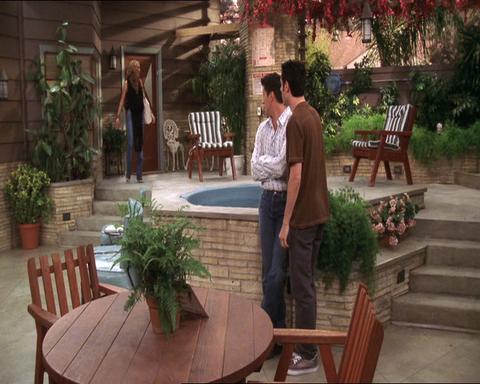
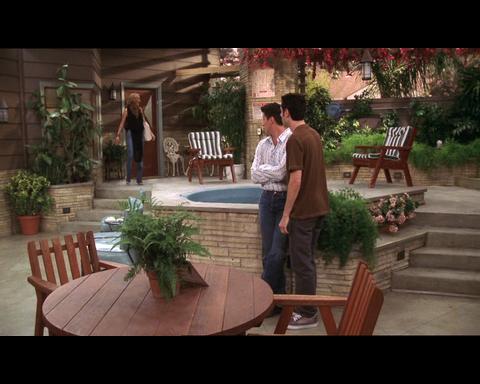
Many DVDs are encoded in anamorphic widescreen format. If that’s the case, looking at the video in VirtualDub, everything should look vertically streched - all people will look tall and narrow. For example, see the following frame from the TV show ‘Joey’:

This will also happen when you combine this video with your content, which you probably didn’t shoot in anamorphic widescreen. You’ll have to resize the video content to fit your video.
The reason for this is very simple. Your video is shot in “normal” 4:3 mode (if it doesn’t, you can safely skip this part). The video on the DVD is stored in widescreen format known as 16:9. The two formats (wide and normal), can’t co-exist in a single movie. You’ll need to modify the DVD video to fit your video. You have two options:
There’s a chance the video fragment you’re interested in starts in one VOB and ends in another (probably the next one). You could convert each part separately, but there’s a slight risk of a sound click between segments. To do it the right way, you’ll need to combine the two VOBs into a single file, which you’ll then open in VirtualDub.
If you’re not afraid of using the command line, it’s quite simple to combine two VOBs into once. Just use the COPY command in the following way (assuming the current directory is where you want to store the result VOB):
copy d:VIDEO_TSVTS_01_1.VOB /b + d:VIDEO_TSVTS_01_2.VOB /b COMBINED.VOB
This command says to copy the binary (/b) file VTS_01_1.VOB and the binary file VTS_01_2.VOB into a file called COMBINED.VOB.
If you’d like to backup complete DVD movies, there’s little sense in converting them to DV. A 2-hour movie, converted to DV would consume a lot of your HD space - something like 26GB. DV is used for video editing, so if you’d like to edit your own videos, and insert clips from DVDs into them, this tutorial is for you.
What you need
You'll need the following:
- DVD content - these are VOB files that contain the video materials. We’ll talk more about these files later.
- VirtualDubMpeg2 - a variant of the popular VirtualDub program that supports the MPEG2 format (the format used in DVDs). Get version 1.6 or newer, otherwise you might have synchronization issues with NTSC video. You'll also need a an AC-3 codec, see information in the above link.
- Cedocida DV codec - a software codec for converting video to the DV format.
Open the DVD using Explorer. You should see 2 folders in it: AUDIO_TS and VIDEO_TS. Open the VIDEO_TS folder. You’ll see something like this:

The audio/video content is kept in the VOB files. These are definitely the larger files on the DVD. Usually, the main movie is stored in VTS_01_1.VOB, VTS_01_2.VOB, etc. Other VOB files contain extras and menus.
The DVD standard dictates that VOB files will be at most 1GB in size. Each such files stores 20-25 minutes of video. You’ll have to find the VOB with the movie segment you’re interested in (again, I assume you’re not planning on converting a whole movie to DV, it just doesn’t make sense). You’ll do that by opening each VOB in VirtualDubMpeg2 and checking the content in it. Since you’ll be working a lot with the VOB files, I suggest you copy them to your HD, and remove them after you’re done.
One last note: An original DVD is encrypted and cannot be read by VirtualDubMpeg2. You’ll have to decrypt the DVD using a software like DVD Decrypter, DVDFAB Decrypter or DVD Shrink. In some places around the world this decryption is considered illegal, while in other, it’s allowed as long as it’s used for creating backup of content you legally own. In any case, I’m sure doing this to add a few 5 second clips into your son’s Bar-Mitzvah’s movie won’t result in an FBI team knoking your door. Still, you’ll have to find another tutorial to see how to work with these decryption software programs.
Loading the DVD video into VirtualDubMpeg2
- Run VirtualDubMpeg2 (the executable is called VirtualDub, so I’ll be using this name from this point forward).
- To load a VOB file, either drag-n-drop the file into VirtualDub or use File » Open video file…
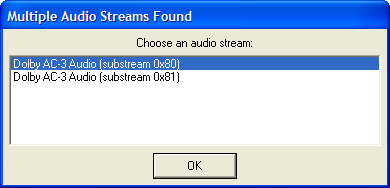
- In many cases, the video within the DVD contains multiple audio streams (usually for multiple languages or director’s commentary). If that’s the case with your DVD, you’ll see the following dialog:

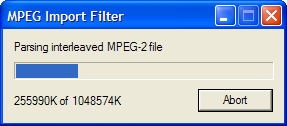
You’ll have to choose the audio stream to be used in your DV avi file. a DV avi file can only have a single audio stream. If you don’t know which audio stream to choose, pick the top one. You can later play the video, and if it’s the wrong audio track, reload the VOB and choose another… - VirtualDub will now scan the VOB file, this should take a few seconds. If you load the VOB directly from the DVD disc (you didn’t bother to copy the VOB to your HD), it might take a few minutes. You’ll see the following progress dialog:

If you only used VirtualDub for manipulating AVI files, you never saw this progress dialog. The AVI file format requires no parsing, since it contains a chunk with this information (towards the end of the movie). A VOB file requires such parsing.
- First, you might want to select the range you want to convert. Remember, DV takes 3.6MBps (that’s Bytes, not bits per second). There’s a chance the range you’re intereseted in is actually between VOBs. We’ll talk about this later.
- We’ll now set the audio conversion options:
- Select the Audio » Full processing mode option.
- Now select the Audio » Compression… option. The audio compression dialog will open:

- Make sure the option is selected. DV audio is stored as uncompressed 16 bit stereo samples at 48Khz. Fortunately, DVD audio is also stored at 48Khz, which means no sample rate conversion is required. Click the OK button to return to the main screen.
- Next, we’ll set the video conversion options:
- Make sure the Video » Full processing mode option is selected.
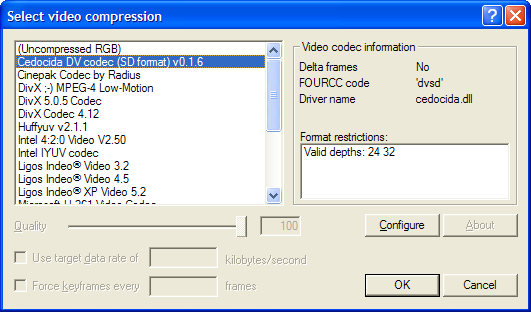
- Select the Video » Compression… option. The video compression dialog will open:

- Select the Cedocida DV codec compression (selected above). Click the OK button.
- Now, to convert to DV avi, choose File » Save as AVI… (F7). Choose a name for your file and click the Save button. Now sit back and wait while the conversion (or transcoding) takes place. Either that, or you can read on, for a few “advanced” topics…
Many DVDs are encoded in anamorphic widescreen format. If that’s the case, looking at the video in VirtualDub, everything should look vertically streched - all people will look tall and narrow. For example, see the following frame from the TV show ‘Joey’:

This will also happen when you combine this video with your content, which you probably didn’t shoot in anamorphic widescreen. You’ll have to resize the video content to fit your video.
The reason for this is very simple. Your video is shot in “normal” 4:3 mode (if it doesn’t, you can safely skip this part). The video on the DVD is stored in widescreen format known as 16:9. The two formats (wide and normal), can’t co-exist in a single movie. You’ll need to modify the DVD video to fit your video. You have two options:
- Add black bars at the bottom and top of the DVD video. The added bars increase the height of the video image so that it’s 4:3. You’ll see the whole content of the original DVD video, but it will look smaller. This method is called “Letterbox”. The above frame should looke like this in letterbox format:

- Crop the DVD videe, removing some content, usually from the sides of the image. You remove just enough content so that the video image is 4:3. You’ll loose some of the content of the original video, but it will occupy the whole screen. This method is called “Pan & Scan”, although we won’t do any panning when we implement this method. The above frame should look like this in cropped format (notice the missing plant on the left hand side):

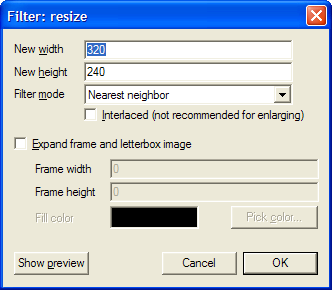
- Choose Video » Filters…. Click the Add… button, choose the resize filter and click the OK button. You’ll see the following dialog:

- Check the Expand frame and letterbox image
- Based on your TV system (Europen PAL or American NTSC), fill the following values in the dialog fields:
Field PAL value NTSC value New width 720 720 New height 432 360 Frame width 720 720 Frame height 576 480 - Click on the OK button. You’ll return to the filter list dialog, which should show the resize filter. Click OK to exit from the filter list. You can now save your letterboxed AVI.
- Add a resize filter as described above. Don’t check the Expand frame and letterbox image, and fill in the following values, based on your TV system (PAL or NTSC):
Field PAL value NTSC value New width 720 720 New height 576 480 - Click on the OK button. You’ll return to the filter list dialog, which should show the resize filter. It should be selected. Now click the “Cropping…” button.
- For fields “X1 offset” and “X2 offset”, fill the value 90. Leave “Y1 offset” and “Y2 offset” as is (zero) and click the OK button. Click OK again to exit the filter list. You can now save your cropped AVI.
There’s a chance the video fragment you’re interested in starts in one VOB and ends in another (probably the next one). You could convert each part separately, but there’s a slight risk of a sound click between segments. To do it the right way, you’ll need to combine the two VOBs into a single file, which you’ll then open in VirtualDub.
If you’re not afraid of using the command line, it’s quite simple to combine two VOBs into once. Just use the COPY command in the following way (assuming the current directory is where you want to store the result VOB):
copy d:VIDEO_TSVTS_01_1.VOB /b + d:VIDEO_TSVTS_01_2.VOB /b COMBINED.VOB
This command says to copy the binary (/b) file VTS_01_1.VOB and the binary file VTS_01_2.VOB into a file called COMBINED.VOB.
Wednesday, November 01, 2006
HDTV is cheaper than your old TV
Okay, not for everyone, but if you want to really enjoy seeing movies at your home, you should be happy that HDTV is getting closer and closer, because it's going to be much cheaper to enjoy a cinema-like experience at your home.
How come? Everyone is talking about how expensive high-def TVs cost and the premium you have to pay for high-def players that support BluRay or HD DVD. While this is true, providing content in HD is essential for lowering the cost of cinema-like experience at your home.
To recreate the cinema experience at your home you'll have to use a projector (maybe a 65" Plasma/LCD display can do the job as well, it's unlikely I'll be ever rich enough to know). Show the average guy a wide 100" diagonal screen, project any decent DVD content on that screen, and he'll tell you it's like going to the cinema, but it's not.
The fact of the matter is that a DVD simply doesn't hold enough data so that a 100" diagonal display would look good enough on it. The image is not sharp enough and you begin to see the compression artifacts. You now have two options:
1. You can watch DVDs on a smaller screen. 32" to 42" is fine. The DVDs would look great, but you'll definitely loose the cinema-like feeling.
2. You can start investing in equipment that will try to digitally enhance the DVD image so that it will look better on a large screen. I did a quick search on such a device - the Faroudja DVP-1510. It costs $7,299.99 (that's web price as of October 2006, not MSRP). You can try the cheaper DVP-1010, which will "only" cost $3,299.99.
I know there are such video processors for around $1000 (for example DVDO Iscan HD), but one has to wonder why these devices are so expensive. The simple answer is that these devices are supposed to perform the impossible, and that's quite hard - they try to create an image that's better than the source. They try to add details to an image (well, to a video - a sequence of images) so that it would be good enough to show on a large screen. Since the original image doesn't have enough detail, they have to perform really complex tricks, and billions of calculations per second to give us the impression of images with more information.
The funny thing is that these devices can perform this magic, but the price is very high.
Enters HDTV. At 1280x720 pixels, a HD image has 2.6 more data than an NTSC DVD frame (with 720x480 pixels) and 2.2 more data than a PAL DVD frame (with 720x576 pixels). No magic from Faroudja (and at no cost) can add so much information to an image. Now that's only the "low-resolution" HD. At the higher HD resolution, a 1920x1280 image fits exacly 6 DVD images. That's really a lot of pixels for our eyes.
So what's the bottom line? If the source is high-def enough, you won't have to invest in technology to enhance the image so that it's decent on a large enough screen. Trying to recreate the added data is a very complex and expensive task (and the results are never as good as HD). If you buy an HD player instead of a good scaler, you'll have enough spare money for a good projector.
Only with HDTV you could really have a home theater (that gives you a cinema-like experience) on a budget.
How come? Everyone is talking about how expensive high-def TVs cost and the premium you have to pay for high-def players that support BluRay or HD DVD. While this is true, providing content in HD is essential for lowering the cost of cinema-like experience at your home.
To recreate the cinema experience at your home you'll have to use a projector (maybe a 65" Plasma/LCD display can do the job as well, it's unlikely I'll be ever rich enough to know). Show the average guy a wide 100" diagonal screen, project any decent DVD content on that screen, and he'll tell you it's like going to the cinema, but it's not.
The fact of the matter is that a DVD simply doesn't hold enough data so that a 100" diagonal display would look good enough on it. The image is not sharp enough and you begin to see the compression artifacts. You now have two options:
1. You can watch DVDs on a smaller screen. 32" to 42" is fine. The DVDs would look great, but you'll definitely loose the cinema-like feeling.
2. You can start investing in equipment that will try to digitally enhance the DVD image so that it will look better on a large screen. I did a quick search on such a device - the Faroudja DVP-1510. It costs $7,299.99 (that's web price as of October 2006, not MSRP). You can try the cheaper DVP-1010, which will "only" cost $3,299.99.
I know there are such video processors for around $1000 (for example DVDO Iscan HD), but one has to wonder why these devices are so expensive. The simple answer is that these devices are supposed to perform the impossible, and that's quite hard - they try to create an image that's better than the source. They try to add details to an image (well, to a video - a sequence of images) so that it would be good enough to show on a large screen. Since the original image doesn't have enough detail, they have to perform really complex tricks, and billions of calculations per second to give us the impression of images with more information.
The funny thing is that these devices can perform this magic, but the price is very high.
Enters HDTV. At 1280x720 pixels, a HD image has 2.6 more data than an NTSC DVD frame (with 720x480 pixels) and 2.2 more data than a PAL DVD frame (with 720x576 pixels). No magic from Faroudja (and at no cost) can add so much information to an image. Now that's only the "low-resolution" HD. At the higher HD resolution, a 1920x1280 image fits exacly 6 DVD images. That's really a lot of pixels for our eyes.
So what's the bottom line? If the source is high-def enough, you won't have to invest in technology to enhance the image so that it's decent on a large enough screen. Trying to recreate the added data is a very complex and expensive task (and the results are never as good as HD). If you buy an HD player instead of a good scaler, you'll have enough spare money for a good projector.
Only with HDTV you could really have a home theater (that gives you a cinema-like experience) on a budget.
Monday, October 30, 2006
Don't buy an HDTV, buy an HD camcorder
It's quite expensive to buy good high-definition equipment. Prices are going down and new
technologies emerge all the time. In addition, it's hard to justify the cost, when there's not enough
content that's broadcasted in high definition.
If you're in the US, you're in good shape, since you can enjoy a few hours of HDTV every day, but
outside of the US it's even harder to find high-definiton content.
Don't get me wrong - seeing an episode of Lost in 720p is ten times better that watching it on a
standard NTSC TV, so if you can afford it, jump in. But if you can't, you might still need to think
about buying an HD camcorder.
I have two kids. They're 3 and 2 years old. As you probably know, in this time and age, you get the
baby out of the hospital with a digital camera. It's just a part of the standard package. The pro
package includes a camcorder. I got the pro package, with a JVC DV camcorder. It's a nice camcorder,
and the image looks pretty good. But it will not look good in 10 years when I sit next to my 20Ghz PC
and use Adobe Premiere Elements 17 to prepare a short video clip for my son's Bar-Mitzvah. It will
not look good since in 10 years we'll all have HDTVs and we'll be used to high definition videos.
I want to be able to watch my kids' videos in 10 years and not think of the "artistic quality" of the low
resolution images we got when we shot videos back in 2006. I want to preserve today's memories
in the highest quality I can. It's more important to me to see my kids in high-definition than
Evangeline Lilly. Maybe now it doesn't seem that important. I see my kids every day, but in 10 years,
those extra pixels are going to be precious.
What can you do with the videos you shoot in HD today? You don't even have a high-def screen to
watch them, and your computer is too slow to edit these videos. That's okay. Just keep them in a safe
place, and wait for consumer technology to catch up with the quality of your videos.
Now you'll have to excuse me. I have to start saving for a Sony HDR-HC3 or a Canon HV10...
technologies emerge all the time. In addition, it's hard to justify the cost, when there's not enough
content that's broadcasted in high definition.
If you're in the US, you're in good shape, since you can enjoy a few hours of HDTV every day, but
outside of the US it's even harder to find high-definiton content.
Don't get me wrong - seeing an episode of Lost in 720p is ten times better that watching it on a
standard NTSC TV, so if you can afford it, jump in. But if you can't, you might still need to think
about buying an HD camcorder.
I have two kids. They're 3 and 2 years old. As you probably know, in this time and age, you get the
baby out of the hospital with a digital camera. It's just a part of the standard package. The pro
package includes a camcorder. I got the pro package, with a JVC DV camcorder. It's a nice camcorder,
and the image looks pretty good. But it will not look good in 10 years when I sit next to my 20Ghz PC
and use Adobe Premiere Elements 17 to prepare a short video clip for my son's Bar-Mitzvah. It will
not look good since in 10 years we'll all have HDTVs and we'll be used to high definition videos.
I want to be able to watch my kids' videos in 10 years and not think of the "artistic quality" of the low
resolution images we got when we shot videos back in 2006. I want to preserve today's memories
in the highest quality I can. It's more important to me to see my kids in high-definition than
Evangeline Lilly. Maybe now it doesn't seem that important. I see my kids every day, but in 10 years,
those extra pixels are going to be precious.
What can you do with the videos you shoot in HD today? You don't even have a high-def screen to
watch them, and your computer is too slow to edit these videos. That's okay. Just keep them in a safe
place, and wait for consumer technology to catch up with the quality of your videos.
Now you'll have to excuse me. I have to start saving for a Sony HDR-HC3 or a Canon HV10...
Subscribe to:
Posts (Atom)